Customer Enquiry
Customer Enquiry Module Documentation
Overview
The Customer Enquiry module allows support and operations teams to manage and respond to customer queries related to their orders. The module provides comprehensive tools for viewing, filtering, and resolving customer enquiries, including refund management and live chat functionality.
Step 1: Navigating to the Customer Enquiry Page
To access the Customer Enquiry section:
- Navigate to the top menu.
- Go to: Customers > Customer Enquiry
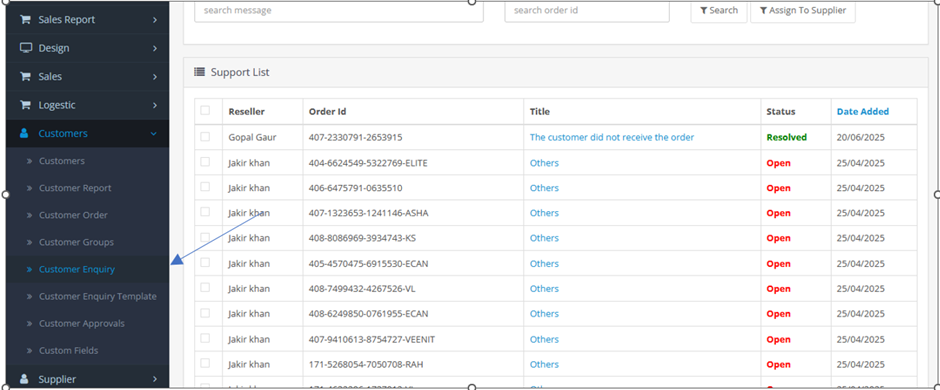
Page Layout Overview
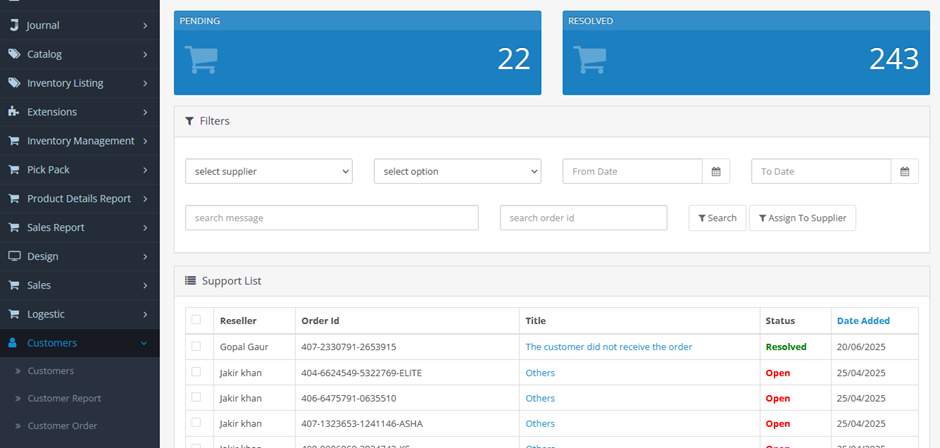
The Customer Enquiry page consists of three main sections:
- Top Section – Summary Counts
- Middle Section – Filter Options
- Bottom Section – Data Table
Step 2: Top Section – Summary Counts
This section displays key metrics related to customer queries. It includes:
- Total Queries – The total number of enquiries submitted by customers.
- Pending Queries – The number of unresolved customer enquiries.
- Resolved Queries – The number of queries that have been successfully resolved.
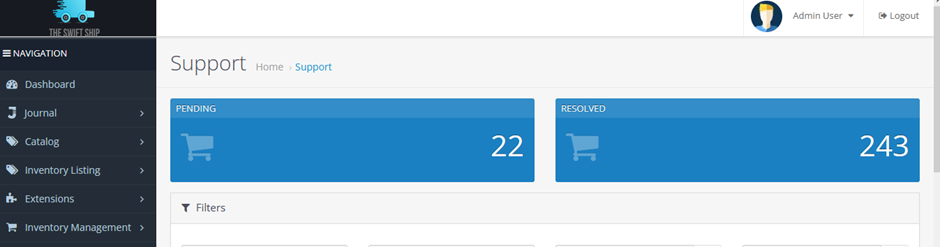
These counts provide a high-level snapshot of customer support performance and backlog.
Step 3: Middle Section – Filter Options
The filter panel helps users narrow down the customer enquiry list based on specific criteria. Filtering options include:
- Query Status – View only pending or resolved queries.
- Date Range – Filter queries based on a specific timeframe.
- Customer Name or ID – Search queries for a specific customer.
- Order Number – Directly access enquiries related to a particular order.
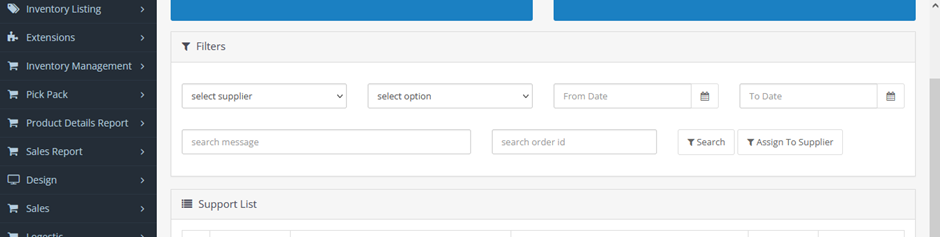
This feature allows support staff to quickly locate and act on relevant customer enquiries.
Step 4: Bottom Section – Customer Enquiry Table
Table Structure
This section displays a tabular view of customer enquiries. Each row represents a unique query related to a customer order. The table includes the following columns:
- Customer Name
- Order ID
- Query Type
- Status (Pending/Resolved)
- Date Created
- Actions
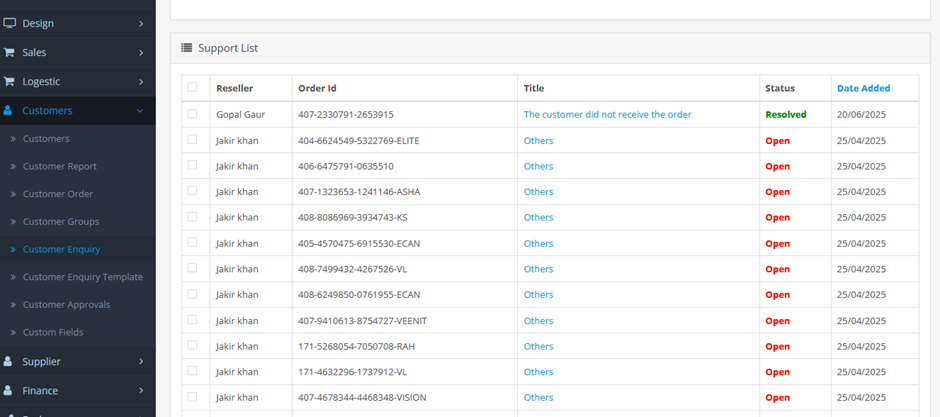
Table Actions
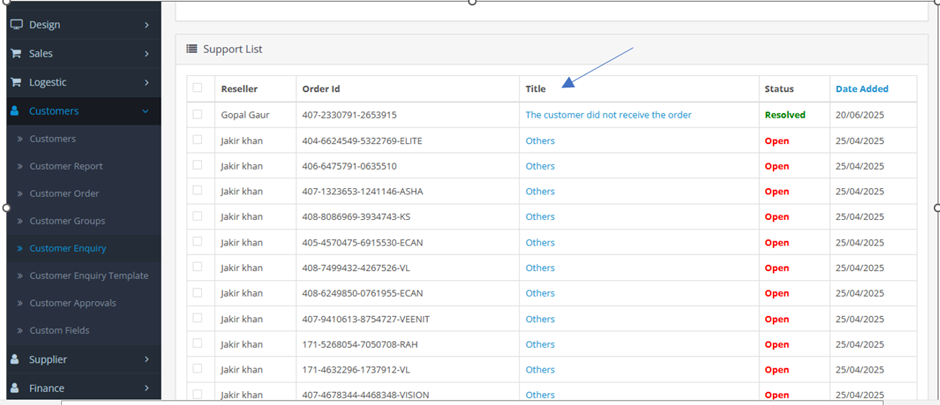
- Column Title Click – Clicking on a column title (e.g., Order ID) redirects to a detailed order page displaying full order information relevant to the query.
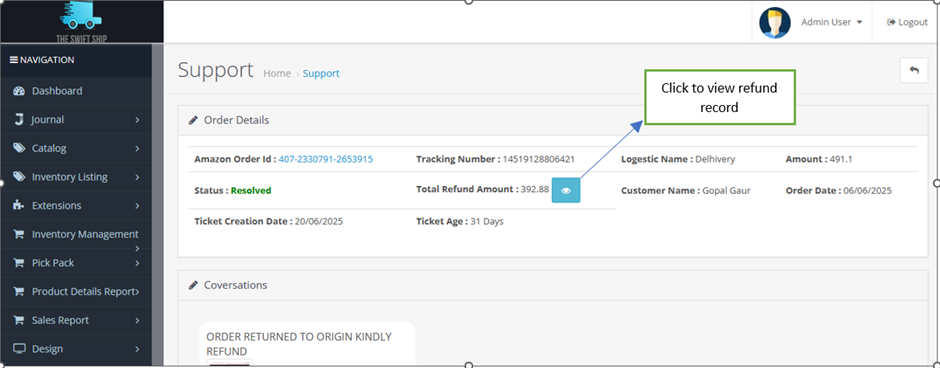
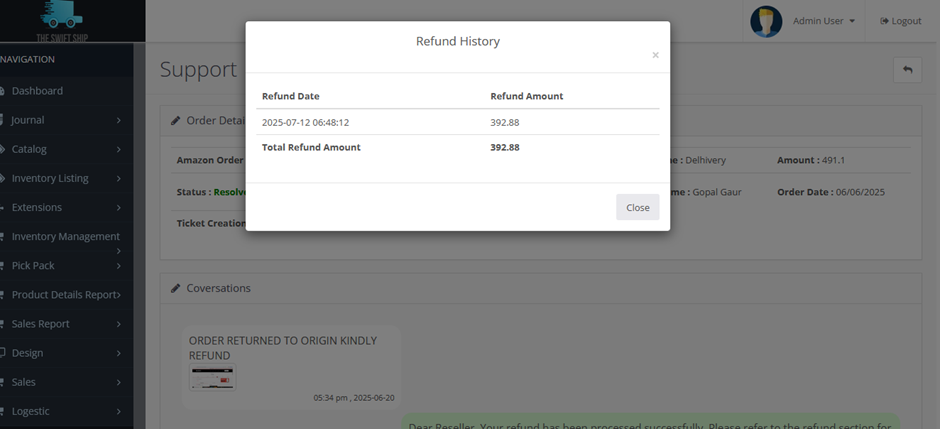
- Eye Icon (👁️) – Opens a popup displaying the refund amount associated with the query, if applicable.
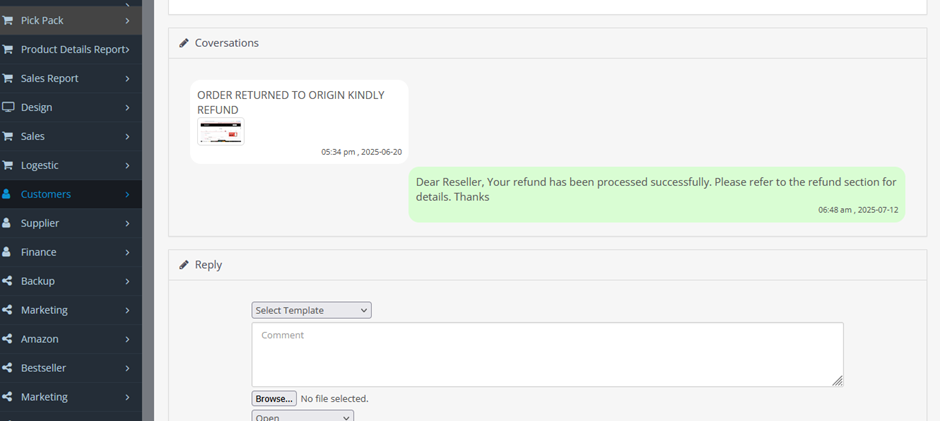
- Live Chat System – Available at the bottom of each query entry. This allows support agents to chat with the customer directly. Once the issue is resolved:
- Update the status from Pending to Resolved.
- This status change is saved in the system for tracking purposes.
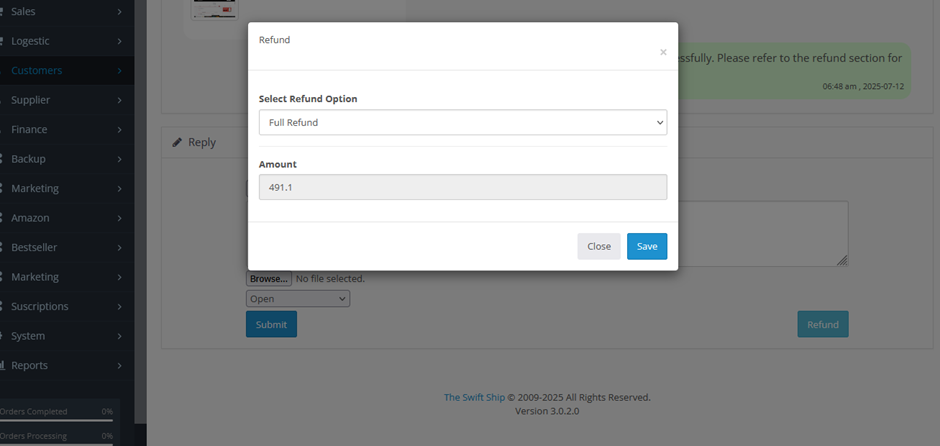
- Refund Button – Clicking this opens a modal form where the agent can:
- Enter the refund amount.
- Submit the form to record the refund in the system’s database.
- This ensures the refund transaction is logged for future reference and audit purposes.
Features Summary
|
Feature |
Description |
|
Summary Counts |
Visual display of total, pending, and resolved queries. |
|
Filter Functionality |
Advanced filters by status, date, customer, or order. |
|
Interactive Data Table |
Dynamic table with clickable rows and actions. |
|
Order Details Redirection |
Direct access to full order data via table links. |
|
Refund Popup View |
See refund amount via eye icon popup. |
|
Live Chat Integration |
Communicate with customers to resolve issues in real-time. |
|
Refund Processing |
Modal form for refund processing and logging. |
Conclusion
The Customer Enquiry module is a comprehensive tool designed to improve customer support efficiency and transparency. With features such as live chat, direct order access, refund management, and a clear UI, it empowers support teams to handle queries with speed and accuracy.
For best practices:
- Regularly monitor summary counts.
- Use filters to manage workload.
- Ensure all conversations are logged and statuses are updated accordingly.
For any technical issues or enhancements, please contact the development team.