Help Center
Sunsky API Integration
Sunsky API Integration
This document outlines the step-by-step process for integrating with the Sunsky API to manage product data, variants, images, and catalog information within your internal system.
Overview
Sunsky API provides programmatic access to product data. This documentation walks through the full process from API key setup to product and image management. It also explains how to utilize various sections of your platform’s UI to manage the imported product catalog.
Step 1: Account Creation & API Key Generation
1.1 Create Sunsky Account
- Visit the Sunsky Official Website.
- Register a new account with a valid email address and required details.
1.2 Generate API Keys
- After successful registration, log in to your Dashboard Panel.
- Navigate to the API Section.
- Generate the following credentials:
- App Key
- Secret Key
These keys are required for authentication in all subsequent API requests.
Step 2: Download Product Details
2.1 Request Product Info
- Make an API request by providing:
- Item Number
- App Key
- Secret Key
2.2 Response
- The API returns Product Details in JSON format.
- Information includes:
- Product name
- Description
- Price
- Availability
- Specifications
2.3 Save Data
- Store the received product information into your Database.
Step 3: Download Product Variants
3.1 Request Variants
- For each product downloaded in Step 2, send another API request for variants using the same:
- Item Number
- App Key
- Secret Key
3.2 Response & Save
- The API responds with Variant Details (like color, size).
- Save all variants to your Database, associated with their main product.
Step 4: Download Product Images
4.1 Request Product Images
- Send a request with:
- Item Number
- Authentication Keys
4.2 Download & Save
- API responds with URLs or image data.
- Save all images locally on your Server.
4.3 Download Variant Images
- Repeat the same process for variant item numbers.
Step 5: View and Manage Products in Catalog
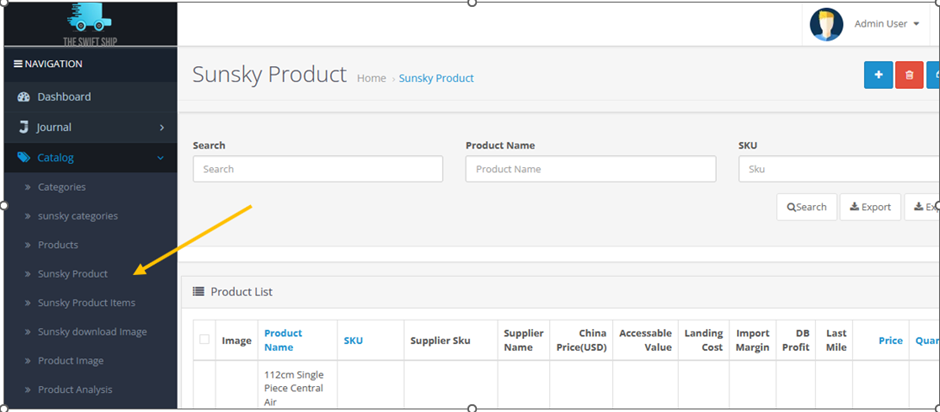
5.1 Navigate to:
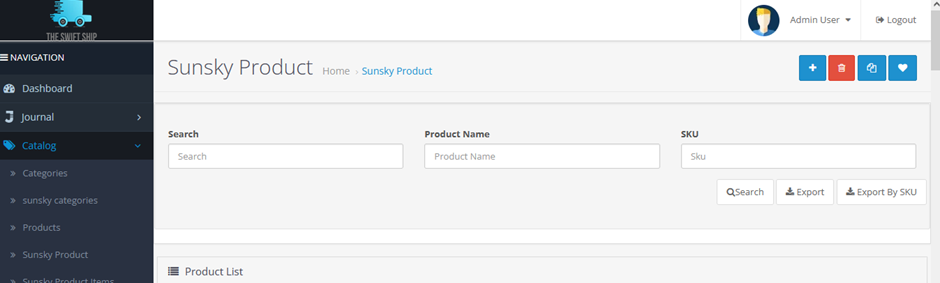
- Catalog > Sunsky Product
5.2 Product Table
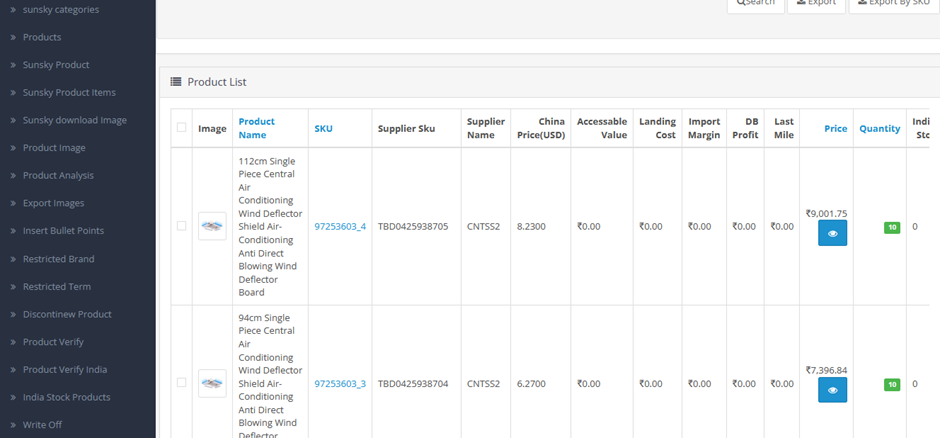
- View all downloaded Sunsky products in a table format.
- Columns include:
- Item Number
- Product Name
- Price
- Status
- Action (Edit)
5.3 Edit Product
- Click the Pencil Icon in the Action column.
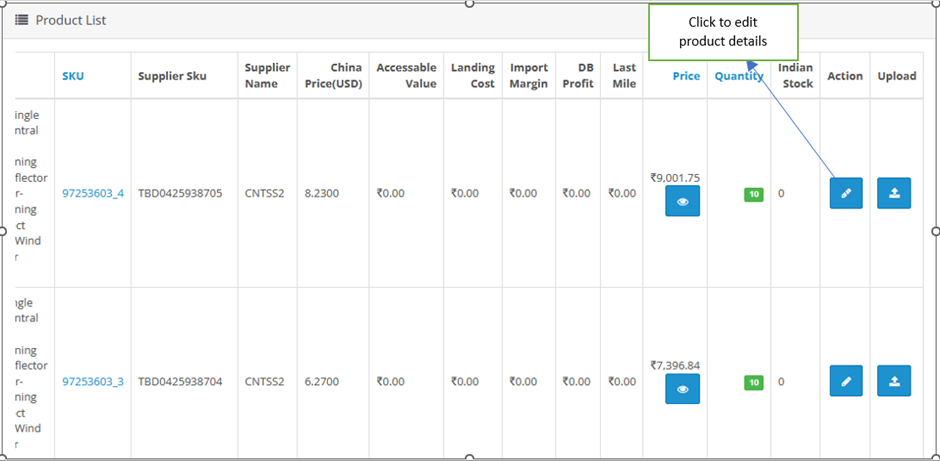
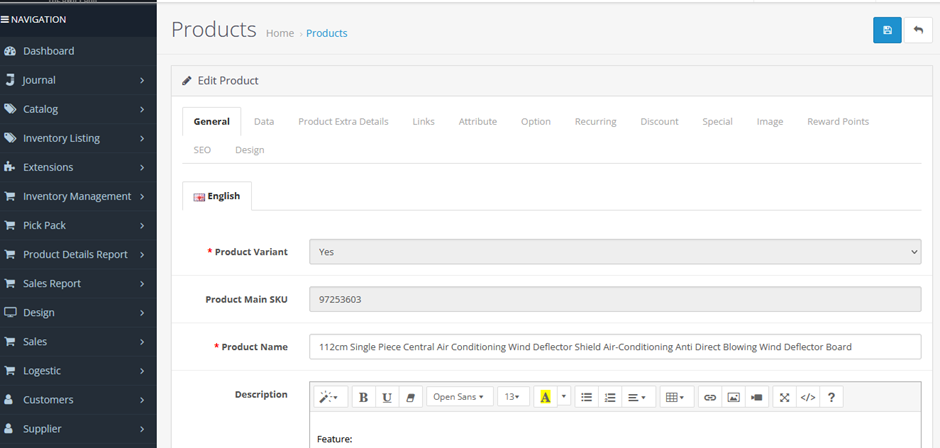
- Redirects to the Edit Product Page where you can:
- Modify product details
- Save changes to the database
5.4 Filter & Export
- Use the Filter section at the top to search products.
- Use the Export option to download product data in Excel or CSV.
Step 6: Manage Product Item Numbers
6.1 Navigate to:
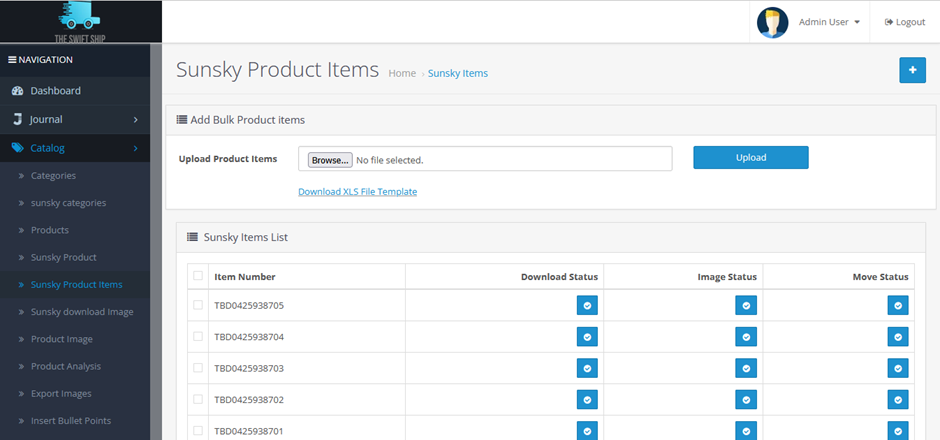
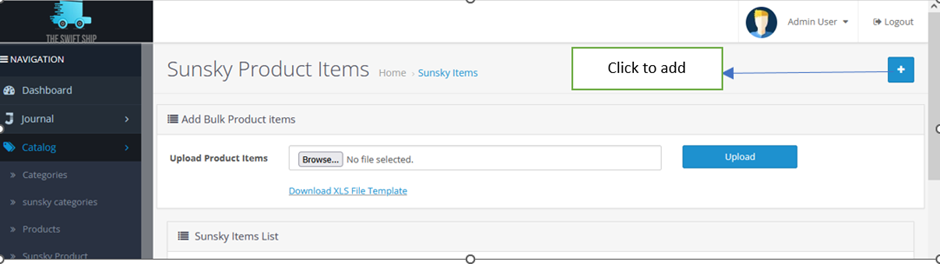
- Catalog > Sunsky Product Items
6.2 Item Number Table
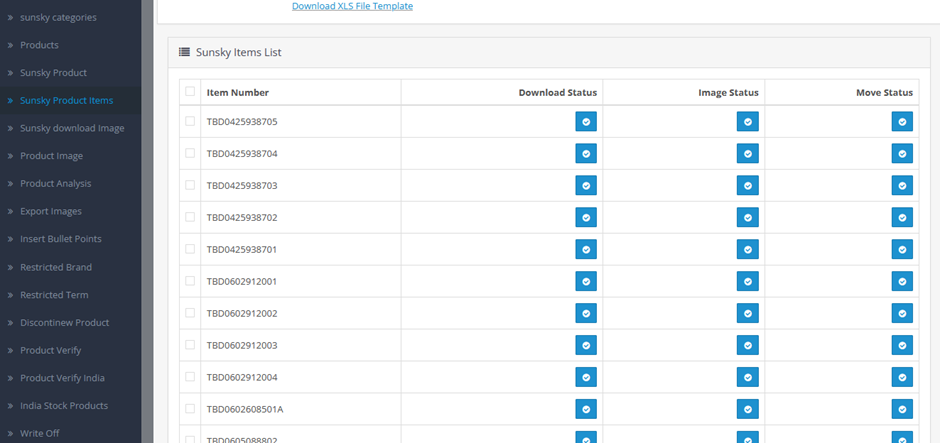
- Displays a table of all downloaded Item Numbers.
6.3 Upload via Excel Sheet
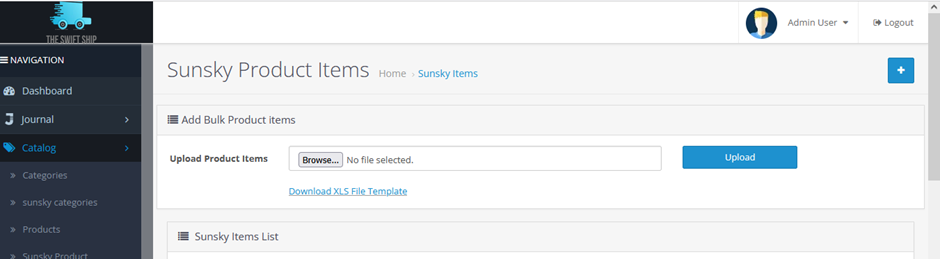
- Upload an Excel file containing multiple Item Numbers.
- System will:
- Parse the file
- Automatically download all related product data using Sunsky API
6.4 Manual Add
- Click the Plus Icon (+) at the top.
- Redirects to a form where you can manually add an Item Number.
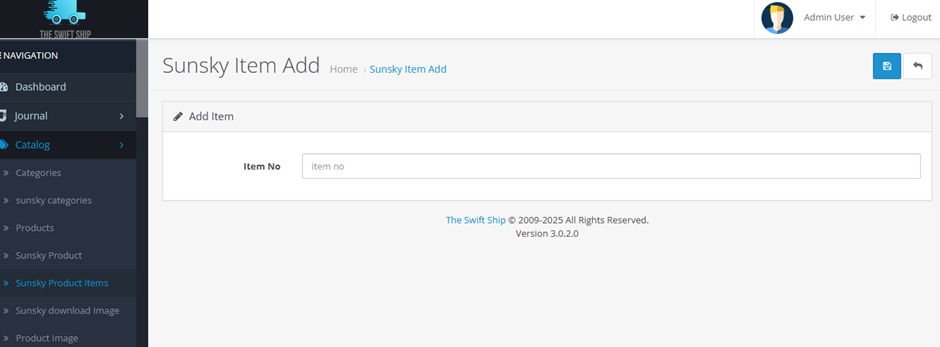
- Upon submission, it triggers product download using the API.
Step 7: Download Product Images Manually
7.1 Navigate to:
- Catalog > Sunsky Download Image
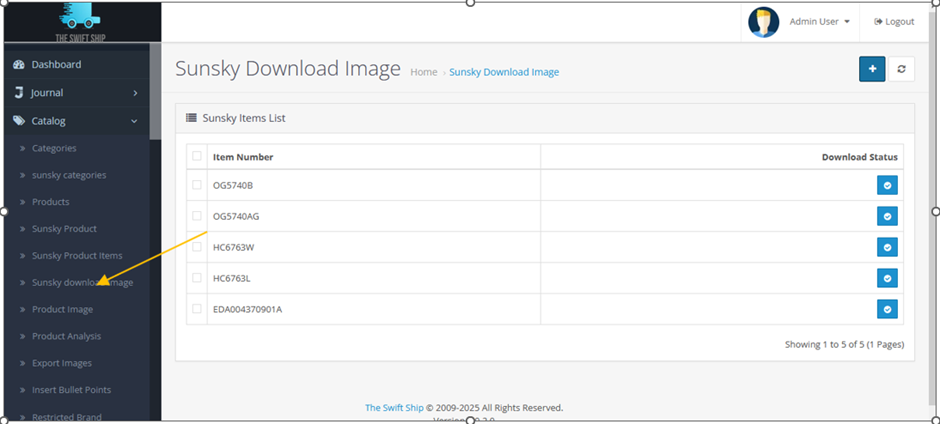
7.2 Check Missing Images
- This page lists products whose images haven’t been downloaded.
7.3 Manual Image Download
- Click the Plus Icon (+) in the top-right corner.
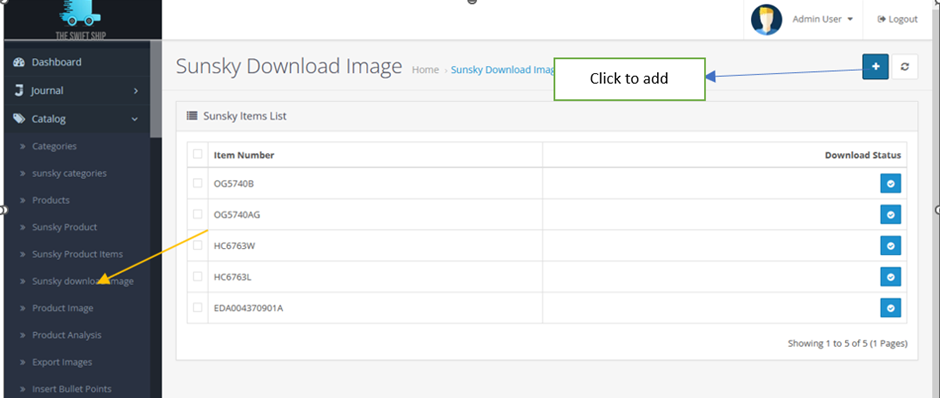
- A Popup Modal Form appears.
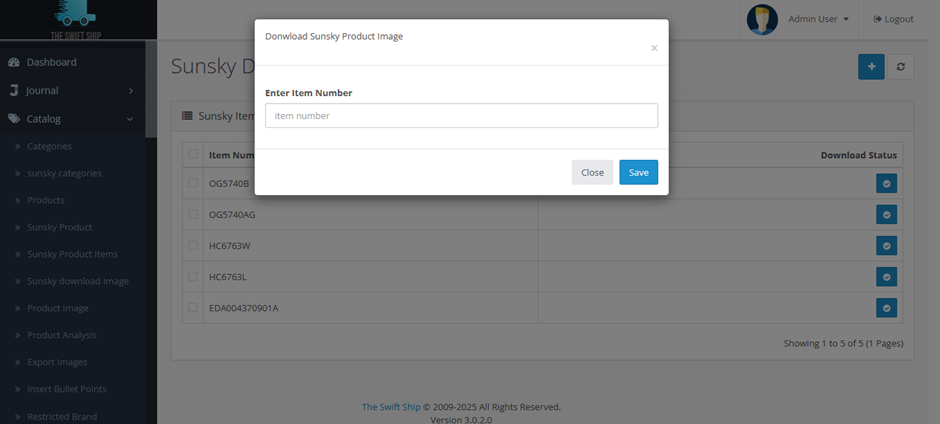
7.4 Add Item Number
-
Enter the Item Number
for which images are missing. - Submit the form to trigger image download via the API.
- Downloaded images are saved on your server.
- The item number appears in the table once the process completes.
Summary Workflow
- Register at Sunsky and get your API credentials.
- Use these to download product and variant data via item numbers.
- Download and store images on your server.
- Manage, view, and update products via the internal catalog interface.
- Import bulk item numbers using Excel, or add manually.
- Use the Sunsky Download Image section to retrieve any missing media.
Note
- Ensure your server has write access to image storage directories.
- Validate and sanitize all incoming API data before saving to the database.
- Maintain logs for API requests to track sync history.